
Dedicated Servers for Workloads That Cannot Wait
Dedicated servers give demanding workloads the performance, control and predictable capacity they need. Learn when a dedicated platform is the right fit.
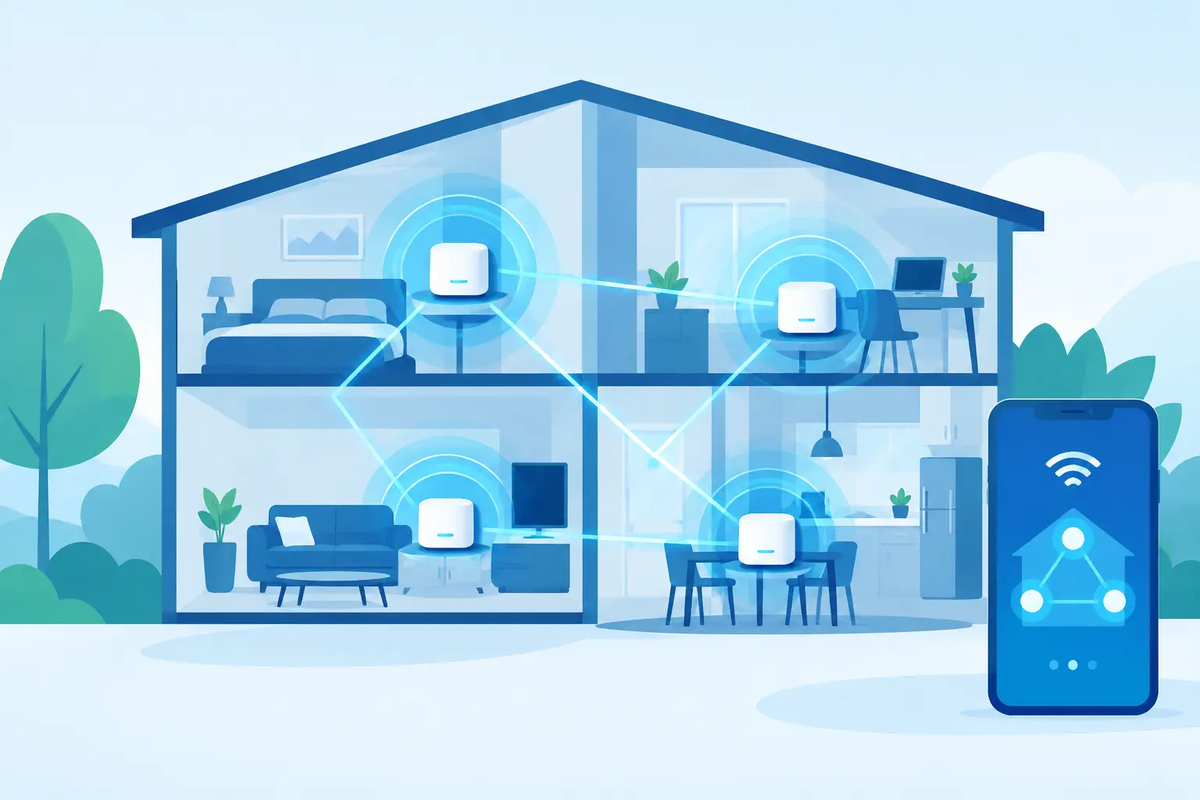
A fast fibre connection can still feel slow when the Wi-Fi signal fades in the bedroom, drops during a video call or struggles to reach a garden office. Knowing how to configure mesh networks properly turns one strong internet connection into dependable coverage where you actually use it.
A mesh system uses several Wi-Fi units, often called nodes or satellites, that work together as one network. Your phone, laptop, TV or smart device can move between them without you manually changing network names. That is the promise. The result depends on placement, the connection between nodes and a few settings that are easy to overlook.
Before opening the setup app, look at your space. A compact flat with solid internal walls may need two nodes. A larger home across several floors might need three. A business premises may need more, especially where meeting rooms, stock areas or separate offices are divided by concrete, glass or metal structures.
More nodes are not automatically better. Each additional node has to communicate with the rest of the system. Placing too many in a small area can create unnecessary radio congestion. Start with the minimum number needed for the size and layout of the property, then expand only where testing shows a genuine weak spot.
Your main node belongs close to the internet connection and should connect directly to the modem or fibre router by Ethernet cable. If your provider equipment includes routing and Wi-Fi features, the cleanest arrangement is usually to let one device manage routing. Depending on the hardware, this means either putting the existing router into bridge mode or setting the mesh system to access point mode. Running two separate routers can cause double NAT, which may affect gaming, remote access, VPNs and some smart-home services.
For households using a provider-supplied fibre router, check which operating mode suits the equipment before changing anything. If you are unsure, pause here rather than guessing. A working internet connection is worth protecting.
Set up the first node next to the router before positioning any others around the property. Connect it by Ethernet, switch it on and use the manufacturer’s app to create the network. The app will normally guide you through naming the Wi-Fi network, choosing a password and applying the latest firmware.
Use one clear network name rather than separate names for 2.4 GHz and 5 GHz wherever the system supports band steering. Modern mesh systems select the most suitable band automatically. Splitting bands can occasionally help with older smart devices that only use 2.4 GHz, but it should be the exception rather than the default.
Choose a long, unique Wi-Fi password. Avoid names, addresses or predictable number patterns. Enable WPA3 security if all essential devices support it. WPA2/WPA3 mixed mode is a sensible compromise in many homes because it maintains compatibility with older equipment while allowing newer devices to use stronger protection.
Once the main node is online, add each satellite one at a time. Put it temporarily in the same room during pairing if the app requests this, then move it to its intended location. After each move, give the system a few minutes to settle and check the connection quality reported in the app.
Do not simply copy the old router’s network name and password without thought. Using the same credentials can make reconnecting familiar devices easier, but it also transfers any weak password choice to the new network. If you do reuse them, make sure the password is strong enough.
The most common mesh mistake is putting a satellite in the room with no signal at all. A node cannot create speed from nothing. It needs a good link back to the main node or another satellite, then it can extend coverage onwards.
Aim for the midpoint between the main node and the weak area. In a typical home, that might be a landing, hallway or open-plan living space. Keep nodes in the open, around chest height if practical, rather than hidden inside a cabinet, behind a television or on the floor. Wi-Fi travels poorly through dense materials, mirrors, aquariums, underfloor heating systems and large appliances.
A node at the far end of a long building may show that it is connected, yet offer disappointing real-world performance because its backhaul link is weak. Move it closer by one room and test again. A slightly smaller coverage footprint with a stronger connection is usually the better result.
Where possible, use Ethernet backhaul. This means linking mesh nodes with network cables rather than asking them to communicate over Wi-Fi. It is particularly valuable in multi-floor properties, older buildings with thick walls and offices handling cloud applications, calls or large file transfers. A wired backhaul preserves more wireless capacity for the devices people are actually using.
After the nodes are in place, spend ten minutes reviewing the settings. These details make a meaningful difference to security and day-to-day reliability.
Create a guest network for visitors. It keeps guests away from shared printers, storage devices and other equipment on the main network. If your mesh system offers a separate network for smart-home devices, use it where appropriate. Low-cost smart plugs, cameras and speakers do not need access to every device in the household or office.
Check automatic firmware updates are enabled. Mesh hardware is a small computer connected to the internet, so updates address both performance issues and security weaknesses. Schedule them for a quiet time if the system allows it.
Quality of Service settings can help when a connection is busy, although they are not magic. Prioritising video calls, business telephony or gaming may improve responsiveness when someone else is downloading a large file. On a high-speed connection with sufficient capacity, automatic QoS often works well. On a slower or heavily shared connection, careful prioritisation becomes more useful.
Parental controls can be useful, but treat them as an extra layer, not a complete safeguard. Device-level settings and clear household rules still matter. For businesses, use separate staff and guest access, and review who has administrator access to the mesh app.
A speed test beside the main node only proves that one corner of the building works well. Test from the places that matter: the home office, bedrooms, the kitchen, meeting room, warehouse corner or terrace. Walk through the property while on a voice or video call and see whether the device changes nodes without an interruption.
Record both download speed and latency. High download speed is useful for streaming and large downloads, but stable latency matters more for calls, gaming, remote desktop work and cloud phone systems. A connection that reaches an impressive peak speed but has frequent pauses will still feel unreliable.
If one room underperforms, change one thing at a time. First move the nearest node. Then check for local interference from cordless bases, Bluetooth-heavy equipment or large electrical devices. Only after that should you consider adding another node. This approach identifies the real cause instead of creating a more complicated network.
Mesh Wi-Fi solves coverage problems, not every internet problem. If every device slows down at the same time, the issue may be the incoming connection, router configuration or a demanding application using all available bandwidth. If only one laptop is slow, the device itself may have an outdated Wi-Fi adapter or a local software issue.
Likewise, mesh cannot fully overcome a very difficult building structure. Thick reinforced concrete, foil-backed insulation and distant outbuildings may require Ethernet cabling, a purpose-built outdoor access point or a separate wired access point. For a business, a professionally planned Wi-Fi installation may be more appropriate than adding consumer mesh nodes until the problem appears to improve.
Visual Online customers who need help deciding between router settings, mesh placement or a wired extension can speak to an in-house team that understands the connection behind the Wi-Fi, not only the app on the screen.
A well-configured mesh network should become unremarkable: calls stay clear, streaming starts quickly and work carries on in the room you choose. That is the right test of the system - not how many nodes it has, but how little you need to think about it.
Dedicated servers give demanding workloads the performance, control and predictable capacity they need. Learn when a dedicated platform is the right fit.
Learn how to migrate email hosting with less risk, shorter downtime and a clear plan for users, data, DNS, testing and final cutover.
Compare colocation vs dedicated server costs, control, security and support. Find the right hosting model for your business and growth plans.

